The buttons along the top of the BlackBird Settings window: files, risk and money management, scheduling, options, alerts and help.
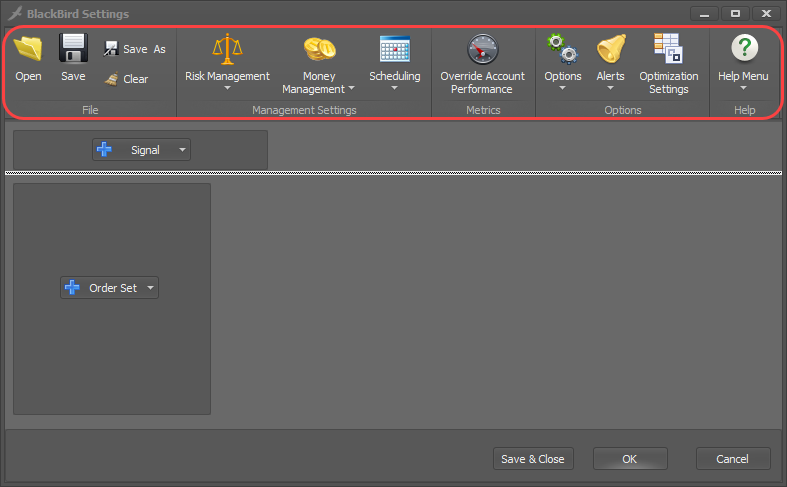
File

A BlackBird settings file (also called a template) holds every BlackBird setting, much like a NinjaTrader workspace holds your charts.
| Button | What it does |
|---|---|
| Open | Loads a settings file. |
| Save / Save As | Saves the current settings to a file. Settings files can be copied to other computers. |
| Clear | Removes all settings, back to a blank BlackBird. |
Good to know
- To come back with the same settings after NinjaTrader restarts, they must be saved to a file. BlackBird reopens the file it had loaded.
- A BloodHound system used in BlackBird is saved in its own BloodHound file, not in the BlackBird file.
- Neither file contains indicators. To use them on another computer, install the same custom indicators there.
Risk Management

Minimum standards each trade must meet, and safeguards while it is open.
| Setting | What it does |
|---|---|
| Min Reward Risk Ratio | Automated trades only. An order set is only submitted if its profit target distance divided by its stop-loss distance is at least this ratio. See below. |
| Exit Trade When Loss Exceeds | Manual and automated trades. Flattens the whole trade (all order sets together) if its loss reaches this amount. A backstop for a stop-loss set too wide by mistake, or one placed at an indicator that ends up far away. |
| Allow Widening of Stop Loss During Trade | Manual and automated trades. Lets Trailing Actions move a stop-loss further from the entry than its initial placement, increasing the risk (that is, the distance between the entry and the stop-loss). |
Min Reward Risk Ratio in detail
The ratio is reward to risk: profit target distance ÷ stop-loss distance. A 15 tick profit target with a 10 tick stop-loss is 15 ÷ 10 = 1.5 (to 1). A 10 tick profit target with a 15 tick stop-loss is 0.67.
It is checked once, just before the entry order is submitted. If the profit target or stop-loss follows an indicator that moves while the entry waits to fill, the ratio may have changed by the time it fills.
No profit target means unlimited reward, so the trade is always allowed. No stop-loss means unlimited risk, so the ratio is zero and the trade is never allowed.
Video: a workshop on Allow Widening of Stop Loss During Trade.
Money Management

Daily limits that stop BlackBird opening new trades for the rest of the day, and position sizing from your risk. The day ends at midnight by your computer’s clock, and trading resumes after it.
These rules apply to this BlackBird’s trades only. They don’t block orders placed any other way, such as NinjaTrader’s Chart Trader or another strategy, and they aren’t an account-level limit.
Loss limits can’t be guaranteed
No setting can guarantee a maximum loss. Exchanges offer no order type that does, so neither can NinjaTrader or BlackBird. Stop market orders can slip, and stop limit orders may not fill. If that isn’t clear, please talk to your broker or a licensed professional.
Net Max Loss and the Daily Watermark act when the realized loss reaches the setting. Their Enforce During Live Trade options use the unrealized loss to flatten a trade in real time, but it can’t be flattened at exactly that amount: expect some slippage, multiplied by the number of contracts.
Mode

PnL Calculation Mode decides which profit and loss, and which trade statistics, the money management rules (and the Performance panel) use.
| Mode | What it uses |
|---|---|
| Using NinjaTrader’s Account Performance (recommended) | The default, as for any strategy: this BlackBird’s trades, matching NinjaTrader’s Strategy Performance report and the Strategies tab. NinjaTrader resets this to zero whenever the strategy reloads. |
| Overridable Account Performance – (Individual Mode) | This BlackBird’s trades, saved to a file so the day’s data is restored after a reload, a data feed disconnect or another disruption. Since 8.3.6.4 each BlackBird keeps its own data, even on the same instrument. |
| Overridable Account Performance (Group Mode) | The combined realized trades of every BlackBird in Group Mode, also saved and restored. The group’s totals trigger each BlackBird’s rules. |
The two Overridable modes also let you change the day’s statistics in Override Account Performance, for example to trade again after a safeguard has stopped trading.
Stopping a group together
Each BlackBird in Group Mode applies its own money management settings to the group’s totals, so they can stop at different times. To stop them all at once, give them the same settings.
A strategy is reloaded when it is disabled and enabled, or the chart reloads for any reason. Turning the Auto Trading button off doesn’t count: BlackBird is still running.
After a NinjaTrader crash
NinjaTrader can’t reconnect open orders to a restarted BlackBird. Flatten those positions and cancel those orders yourself.
Daily Safeguards

Each one, when checked, stops new trades for the rest of the day once its limit is reached.
Enforce Safeguards For chooses which entries are stopped: Auto Trading (entries from Trade Signals) and Manual Trading (entries with BlackBird’s own buttons, on the Trade Controls and Dynamic Planning panels). Entries placed any other way, such as with a NinjaTrader ATM or another strategy, aren’t affected.
| Setting | Stops trading when |
|---|---|
| Max # of Trades | This many trades have been taken today. |
| Max Consecutive Wins | This many winning trades in a row. |
| Max Consecutive Losses | This many losing trades in a row. |
| Max # of Winning Trades | This many winning trades today. |
| Max # of Losing Trades | This many losing trades today. |
| Net Max Profit | Today’s net profit reaches this amount. |
| Net Max Loss | Today’s net loss reaches this amount. See Loss limits can’t be guaranteed. |
| Enforce During Live Trade | For Net Max Profit and Net Max Loss: also checks the open trade’s unrealized P&L in real time, and flattens it when the limit is reached. |
When a safeguard stops a trade
BlackBird ignores the entry and explains why in a message at the bottom of the chart:

To trade again the same day, lower the statistic that triggered it (or click Reset All) in Override Account Performance. This only works with one of the Overridable PnL Calculation Modes.
What counts as a trade
A trade is the whole position, not each order set or contract; NinjaTrader calculates these statistics. With three order sets of 1 contract each, the net result of all 3 contracts decides whether the trade won or lost.
So with Max Consecutive Wins at 2, a trade where all three order sets win counts as one win. The next whole trade must also be a net win.
Enforce During Live Trade in backtests
NinjaTrader gives strategies no real-time P&L during a backtest: unrealized P&L only updates when each bar closes. So these options are much less accurate in backtests; they are meant for live trading. Tick Replay improves accuracy, but makes backtests much slower.
Account Risk
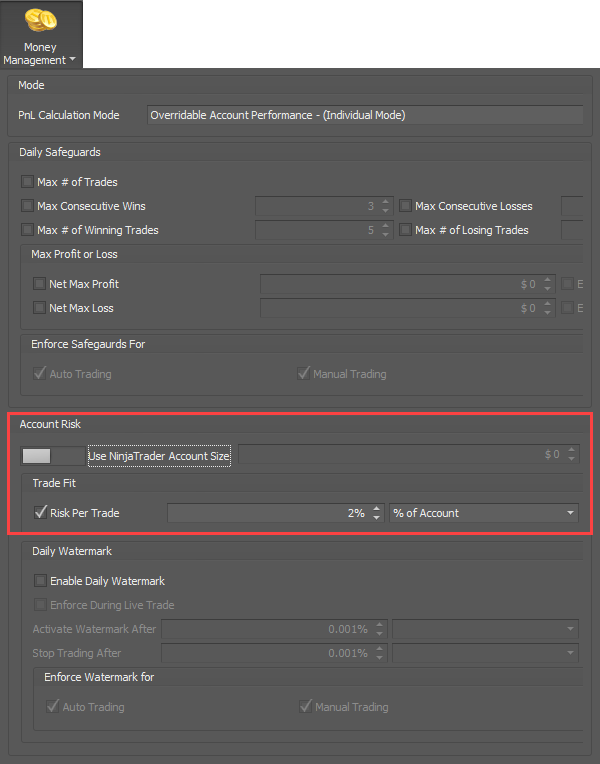
Sizes each trade (contracts, lots or shares) so its risk matches what you set.
| Setting | What it does |
|---|---|
| Use NinjaTrader Account Size | The account size used for percentage settings. On: the account value from NinjaTrader. Off: the amount you enter. |
| Risk Per Trade | The most a trade may risk, as an amount or a percentage of the account size. The position size is increased or reduced to fit, however the trade is placed: automatically, with Dynamic Planning, or with the trade buttons. See below. |
How Risk Per Trade sizes a trade
Risk is the distance from the entry to the stop-loss, worked out from each order’s Initial Placement before anything is submitted. An order set with no stop-loss gets a size of zero, because its risk can’t be calculated. Quantity Scaling on each order set limits how far its size can change; check it if you have changed it.
Example: account size $10,000 and Risk Per Trade 2% gives a $200 maximum risk. On CL (crude oil, $10 per tick per contract):
- A 10 tick stop-loss risks $100 per contract, so the size is 2.
- A 12 tick stop-loss risks $120 per contract, so the size is 1 (2 would risk $240).
An entered account size stays fixed: it isn’t updated as trades win or lose.
Several order sets: close, not exact
With more than one order set, the number of size combinations grows very quickly. To decide within about 100 milliseconds while the market moves, BlackBird tests a limited number of them, stepping sizes in bigger increments as order sets are added. With one order set it can step one contract at a time.
So the risk lands close to Risk Per Trade, not exactly on it. For example, with $500: one order set might come to about $480, three order sets nearer $415.
Daily Watermark

Protects part of the day’s profit, like a trailing stop on realized net profit (but it isn’t an order). Once the day’s profit is high enough, BlackBird tracks the day’s highest net profit (the high watermark). If net profit then falls back to the watermark stop, BlackBird stops trading for the rest of the day. The Performance panel shows both.
| Setting | What it does |
|---|---|
| Enable Daily Watermark | Turns the watermark on. |
| Enforce During Live Trade | Also counts the open trade’s unrealized loss, and flattens it if that brings net profit down to the watermark stop. Only available with Overridable Account Performance – (Individual Mode). |
| Activate Watermark After | The net profit that switches the watermark on: a fixed amount, or a percentage of the account size (2% of $10,000 = $200). |
| Stop Trading After | How far net profit may fall from the high watermark: a fixed amount of profit lost, or a percentage of the high watermark. See below. |
| Enforce Watermark For | Which entries the watermark stops: Auto Trading, Manual Trading (BlackBird’s own buttons), or both, as for the Daily Safeguards. |
Stop Trading After in detail
The watermark stop is the high watermark minus this amount. It rises when realized net profit makes a new high, and is updated only when the position is flat, not continuously like a trailing stop.
Example (% of profits lost): Activate Watermark After $500, Stop Trading After 40%. Net profit reaches $650, so the watermark stop is $650 − 40% = $390. If profit rises to $820, the stop rises to $492. If net profit falls to the stop, BlackBird stops trading for the day.
Scheduling

Sets when automated entries are allowed: only in the green trading periods. Trade signals outside them are ignored. This only limits automated entries; it doesn’t stop you trading by hand.

| Setting | What it does |
|---|---|
| Restrict auto entries by time | Turns scheduling on. |
| Force Trades To Exit | Flattens open positions and cancels unfilled and pending entry orders a set number of seconds (Seconds Before Session End) before each trading period ends. See below. |
| Load Session Template | Loads a NinjaTrader trading hours template as a starting point. Your edits stay in BlackBird; the NinjaTrader template isn’t changed. |
| Daily Schedule | The trading periods for each day. Double-click, or right-click, a blank (white) area to add one, or a green period to edit or delete it. |
| Time Zone | The time zone the periods are in. If you entered the market’s hours in US Eastern time, choose UTC -05:00 Eastern Time; if you entered your own local times, choose your time zone. |
Pending scale-in entries
When a trading period ends, scale-in entries still waiting to be submitted (the Place After option) are canceled. Force Trades To Exit also cancels them.
Force Trades To Exit in detail
It works like NinjaTrader’s Exit on session close, but for each of your trading periods. With a session ending at 4:00 pm Eastern:
- 30 closes positions at 3:59:30 pm, and no new trades open after that.
- -30 (negative) closes them at 4:00:30 pm, giving trades 30 seconds more after signals stop being taken. Check with your broker when positions must be flat after the close.
It runs at the end of every period. For example, to skip the Wednesday Petroleum Status Report you might trade 9:30–10:30 am and 10:45 am–4:00 pm; with 30 seconds, positions are closed at 10:29:30 am and again at 3:59:30 pm.
It needs a tick
NinjaTrader only runs strategy code when market data arrives; there is no timer. If no ticks arrive at the exit time, positions aren’t closed until data starts again.
Editing the daily schedule


Override Account Performance

Shows the day’s statistics that the money management rules use, and lets you change them. Also opened from the Performance panel.
- Trade again after a safeguard: lower the statistic that stopped trading, or click Reset All. For example, if Max # of Trades stopped trading, reduce Total # of Trades.
- Include earlier trades: if BlackBird started late, add the trades it missed so the rules count them.
Overridable modes only
Changes only take effect when Money Management’s PnL Calculation Mode is one of the two Overridable modes. With Using NinjaTrader’s Account Performance, the window says so, and changes don’t affect how BlackBird trades.

| Control | What it does |
|---|---|
| Individual / Group tabs | This BlackBird’s statistics, or the combined statistics of every BlackBird in Group Mode. |
| Total Net Profit, High Watermark, Total # of Trades | The day’s net profit, its highest net profit, and the number of trades. |
| Winning Trades / Losing Trades | Max Consecutive Winners (or Losers), Current Consecutive Winners (or Losers), and # of Winning (or Losing) Trades. |
| Reset All | Sets every value to zero. |
| OK | Keeps your changes and closes the window. |
| Cancel | Discards your changes and closes the window. |
For detailed statistics, see NinjaTrader’s Strategy Performance report; the underlying data comes from NinjaTrader.
Options


Auto Trade Options
| Setting | What it does |
|---|---|
| Allow Re-Entry on Same Bar | Only with Calculate set to On each tick or On price change. Off (the default): at most one entry per bar. On: after a profit target or stop-loss fills, BlackBird can enter again on the same bar if the signal is still there. |
| Opposite Signals Force Reversal Trade | On (the default): an entry signal in the opposite direction reverses the position. Off: it is ignored; BlackBird only takes a signal when flat with no working entry order. |
| Allow Auto Trades During Manual Position | Only when Trade Signals are set up. Off: while a trade you placed by hand is open, entry and exit signals are ignored. On: signals act on it; a short signal reverses your manual long, for example. |
A manual trade is one placed with the Trade Controls or Dynamic Planning buttons. Either way, BlackBird only acts on the orders it placed; other strategies and trades in the account aren’t affected.
Forex tab

| Setting | What it does |
|---|---|
| Preferred Lot Size | How much the order set quantity changes per click of its up and down buttons. |
| Display Mode | How lot quantities are shown (for example, K Notation). |
A workshop video covers the Forex tab.
Throttle tab

Market Data Throttle Delay sets how often the Info panel‘s bid, ask and last prices update, in milliseconds between updates (minimum 200, which is 5 times a second; 500 is twice a second). It only affects that display: BlackBird still evaluates all market data. Higher values help performance in very fast markets. For every tick, use NinjaTrader’s Time & Sales window.
Diagnostics tab
Alerts


Alerts for trade events: sounds, emails, chart messages and more. NinjaTrader’s own audio alerts take priority over BlackBird’s.
| Setting | Alerts when |
|---|---|
| Enable Alerts | Turns alerts on. |
| Entry Signal | An entry signal arrives from Trade Signals. |
| Exit Signals | An exit signal arrives from Trade Signals. |
| Stop Move (small / medium / large) | A stop-loss trails a small, medium or large distance. Each plays its own sound file. |
| Active Position | An entry fills and a position opens, however it was placed. Market entries fill at once; limit and stop entries when the market reaches them. |
| Flat Position | The position closes: all profit targets or stop-losses filled, an exit signal, or the Close button. |
Click an event’s [▼] button to choose its alert type.
Alert types
| Type | What it does |
|---|---|
| Post to Alerts Window | Posts to NinjaTrader’s Alerts window. |
| Chart Message | Writes a message on the chart. |
| Chart Symbol | Draws a NinjaTrader marker on the chart. |
| Sends an email through NinjaTrader. Set up its email share service first. | |
| Log Message | Posts to the Log tab of the Control Center. |
| Play Sound | Plays a sound file NinjaTrader can play. |
| None | No alert. |
Alert type windows


Message placeholders

| Placeholder | Replaced with |
|---|---|
| [ALERTNAME] | The alert’s name, such as Entry Signal or Flat Position. |
| [DATE] | The date of the alert. |
| [TIME] | The time of the alert. |
| [INSTRUMENT] | The chart’s instrument. |
| [CHART] | The chart’s bar type and period, such as 5 Minute or 10 Range. |
| [PRICE] | The entry price, or the price of the limit or stop entry order. |
Optimization Settings

Chooses which BlackBird and BloodHound settings can be optimized in NinjaTrader’s Strategy Analyzer. See Optimization.
Help Menu


| Item | What it does |
|---|---|
| Online Support | Opens our Contact Us page. |
| Documentation | Opens the BlackBird documentation. |
| Submit Feedback | Opens our Contact Us page. |
| Manage License | Opens the Licensing window. |
| Buy Now | For trial users, when you’re ready to buy. |
| Check For Update | Checks for an update now. BlackBird also checks every few days. |
| About | Shows the version you’re using. |